WebHook
A WebHook is a mechanism that triggers an HTTP request when an event occurs. It is commonly used to build automated workflows — for example, triggering a build, deployment, or notification from a code repository.
This guide uses Gitee WebHook + server auto-deployment as an example, walking through the complete flow from creating a WebHook, generating and deploying an SSH public key, to automatically pulling code and building on the server. You can also adapt the first half of this guide to GitHub or other platforms — the principle is the same.
Full Workflow Overview
graph LR
  A[Push code to Gitee] --> B[Gitee triggers a WebHook HTTP request]
  B --> C[Server-side receiver script verifies the secret]
  C --> D[git pull fetches the latest code]
  D --> E[Build and publish the site]
To wire up this pipeline, you need to do three things:
| Step | Purpose | Where |
|---|---|---|
| ① Generate & deploy SSH public key | Lets the server pull a private repo without a password | Server + Gitee "SSH public keys" |
| ② Create the WebHook | Gitee sends a request to the server on push | Gitee repo "WebHooks" settings |
| ③ Deploy the receiver script | Receives the request, verifies the secret, auto-builds | Server |
Order note: complete ① key deployment first so the server can pull code passwordlessly; then create ② the WebHook to enable push notifications; finally ③ deploy the receiver script to finish auto-building. Below are two implementation paths — UI-based and command-line — pick either to complete steps ① and ②. Step ③ is shared by both and is covered at the end of this page.
Option A: UI-based (Gitee web console)
1. Generate & deploy the public key (SSH public key)
Screenshot placeholder: the
../../images/webhook/5服务器生成SSH密钥.pngand../../images/webhook/6Gitee添加SSH公钥.pngbelow are pending screenshots. Follow the steps, then drop the images at these paths and fix the filenames.
1.1 Generate the SSH key pair on the server
Run in the server terminal:
ssh-keygen -t rsa -b 4096 -C "webhook@your-server"
# Press Enter to accept the default path ~/.ssh/id_rsa, or set a passphrase
Then view the public key contents (see the image placeholder below):
cat ~/.ssh/id_rsa.pub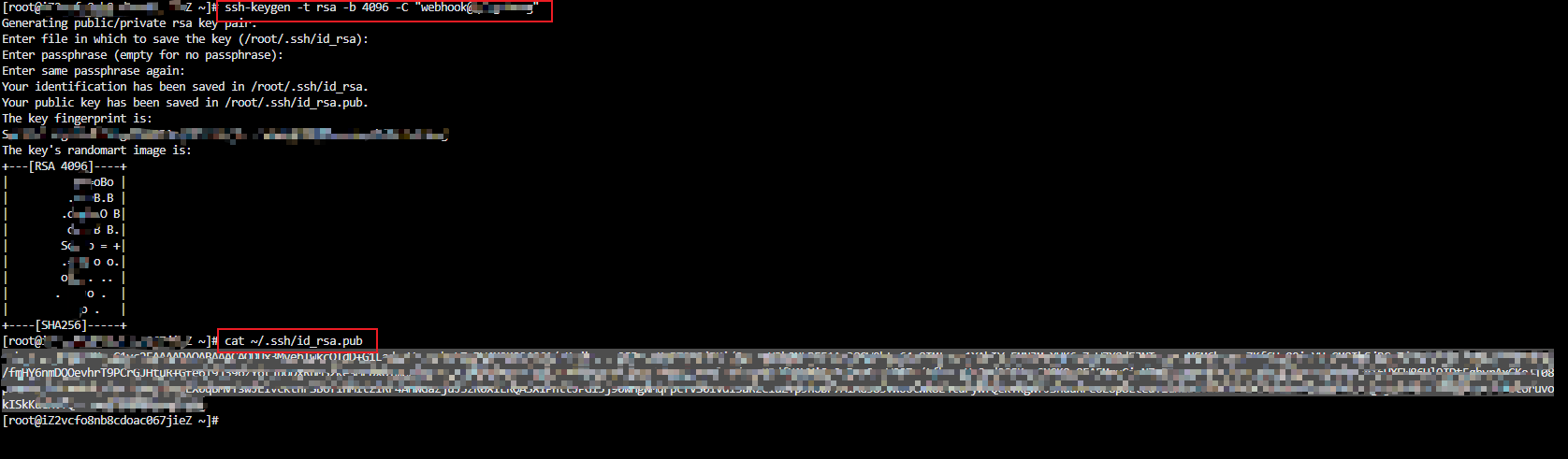
1.2 Add the public key to Gitee
Open Gitee's top-right avatar → "Settings" → "Security settings → SSH public keys", click "Add key", and paste the public key you copied in the previous step.
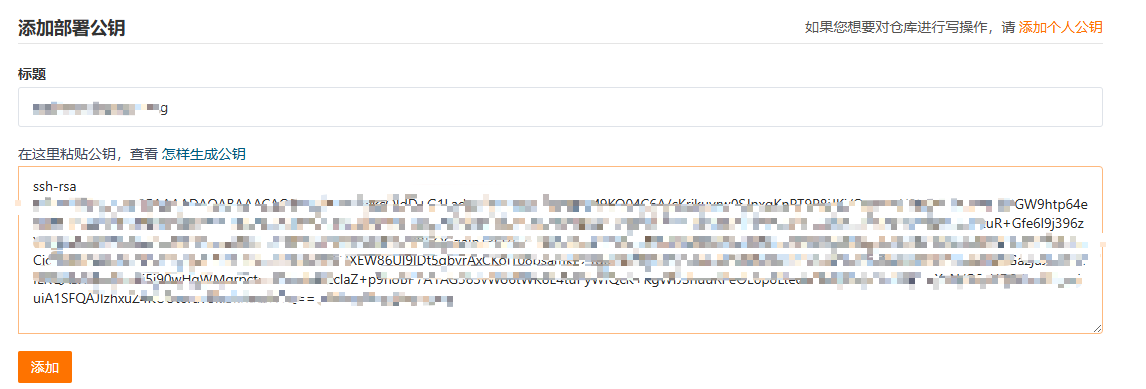
Once added, the server can pull the repo over SSH without a password:
git clone git@gitee.com:your-username/your-repo.git
# Use git pull for subsequent updates; the deploy script will run this automatically later
2. Create the WebHook
Log in to Gitee, open the target repository, and go to the WebHooks management page under "Manage".
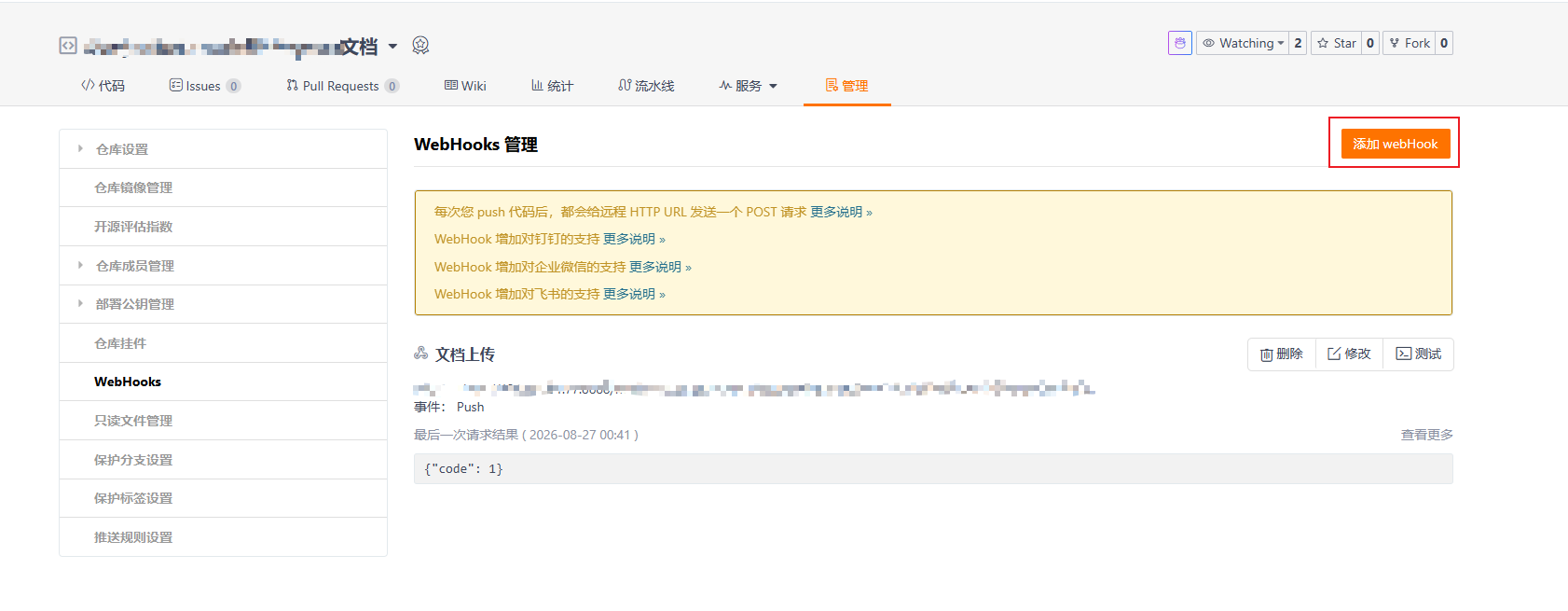
Click "Add WebHook" and fill in the parameters:
- URL: the address of the deploy script on your server, e.g.
http://your-server-domain/webhook. - Password: the secret the receiver script uses to verify the request source (acts as the WebHook's secret).
- Events: check "Push Hook" (trigger on push), and optionally check other events as needed.
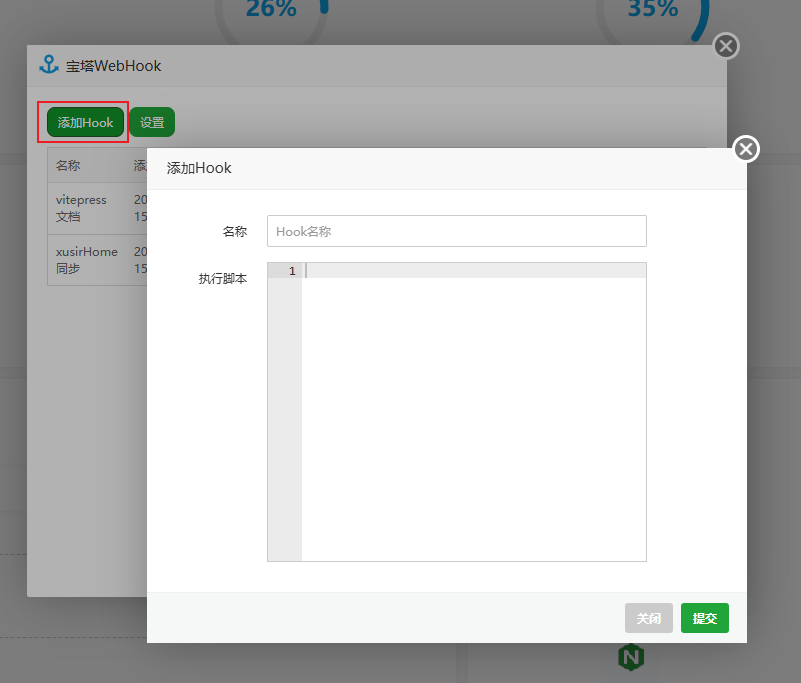
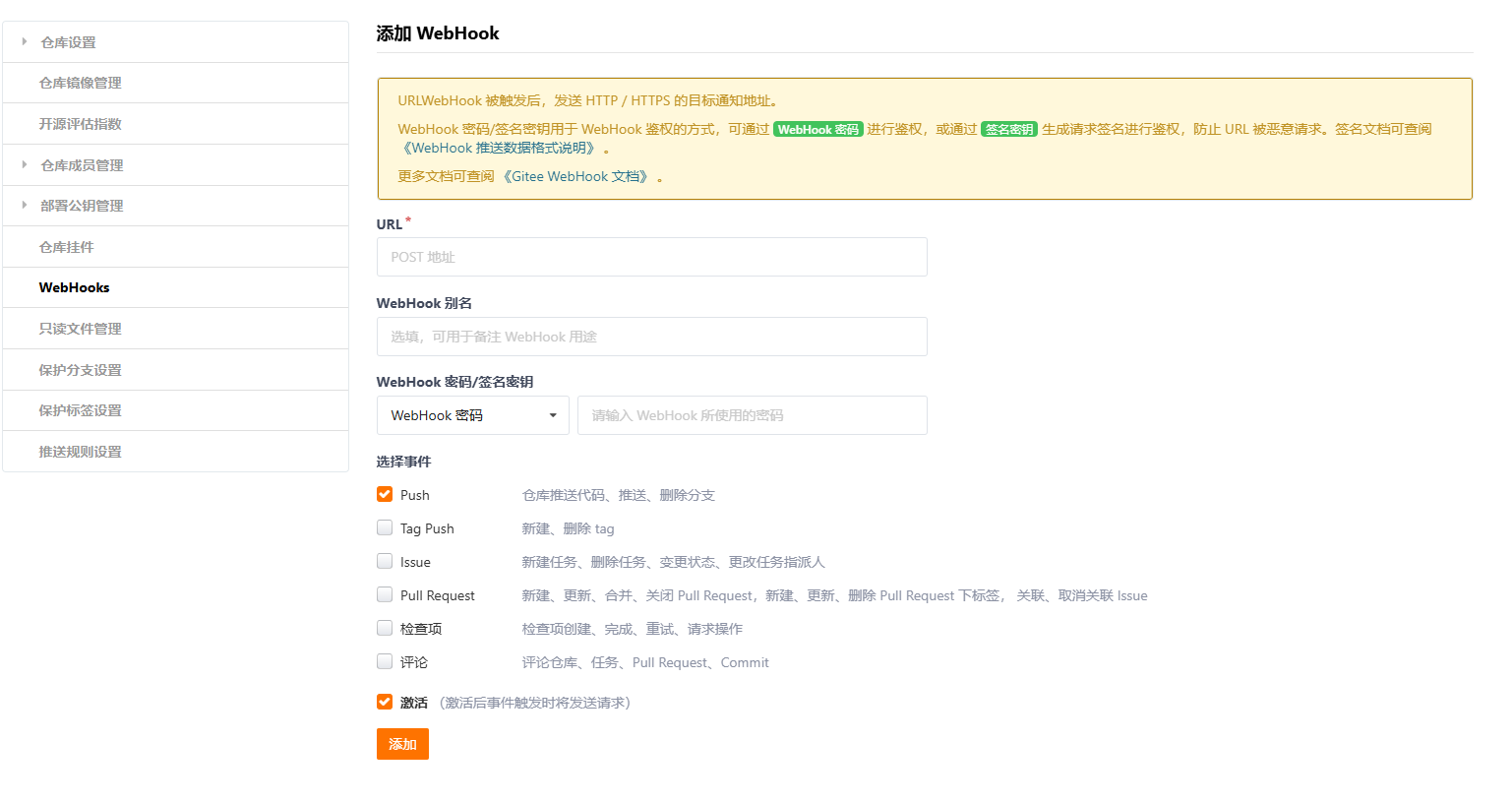
3. Copy the secret
After saving, copy the WebHook's "Password" to use as the secret the server-side deploy script verifies (you can also customize it as any strong password).
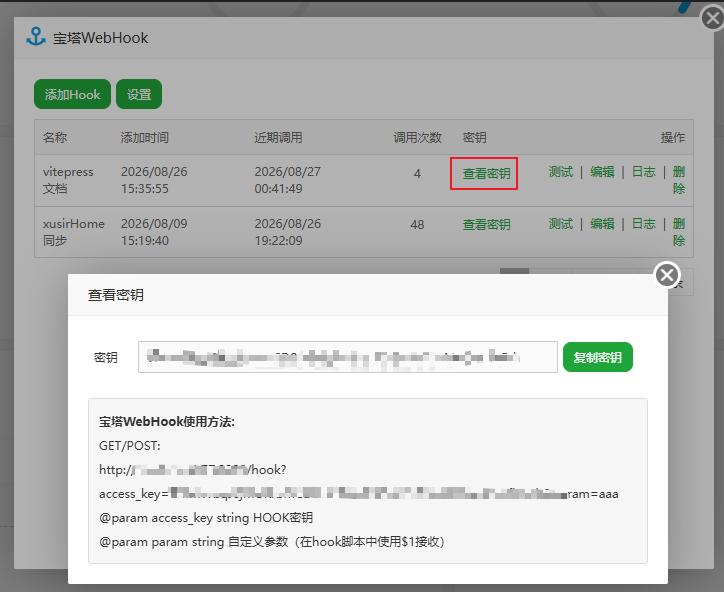
Note: the "Password" here is the verification secret between Gitee and the server — it is entirely separate from the SSH public key in step 1. Don't confuse them.
That completes steps ① and ② via the UI path. You can jump straight to "Deploy the receiver script" at the end of this page.
Option B: Command-line
1. Generate & deploy the key via command line
1.1 Generate the SSH key pair
ssh-keygen -t rsa -b 4096 -C "webhook@your-server"
# Press Enter to accept the default path ~/.ssh/id_rsa

cat ~/.ssh/id_rsa.pub
# Copy the output — this is the public key
1.2 Add the public key to Gitee
You can add it via the Gitee API:
curl -X POST 'https://gitee.com/api/v5/user/keys' \
  -H 'Content-Type: application/json' \
  -d '{
    "access_token": "your-personal-access-token",
    "title": "webhook-server",
    "key": "ssh-rsa AAAA...(the public key you copied in the previous step)"
  }'
You can also paste it manually in the Gitee web console under "Settings → Security settings → SSH public keys". Either approach works.
1.3 Verify passwordless pull
ssh -T git@gitee.com          # A welcome message means the key was deployed successfully
git clone git@gitee.com:your-username/your-repo.git
2. Create the WebHook via the Gitee API
Gitee provides an OpenAPI, so you can create a WebHook from the command line. First, generate a personal access token (access_token) on the Gitee personal access tokens page.
curl -X POST 'https://gitee.com/api/v5/repos/your-username/your-repo-name/hooks' \
  -H 'Content-Type: application/json' \
  -d '{
    "access_token": "your-personal-access-token",
    "url": "http://your-server-domain/webhook",
    "password": "your-webhook-secret",
    "add_events": ["Push Hook"],
    "active": true
}'- A
201 Createdresponse means the WebHook was created successfully. - To list/manage existing WebHooks:
# List all WebHooks for the repo
curl 'https://gitee.com/api/v5/repos/your-username/your-repo-name/hooks?access_token=your-personal-access-token'
Parameter notes:
add_eventssets the trigger events —Push Hooktriggers on push;passwordis the secret the receiver script verifies.
That completes steps ① and ② via the command-line path. Now on to the shared section.
Deploy the receiver script (auto-build)
The path
../../images/webhook/7部署接收端脚本.pngbelow is a placeholder for a deployment diagram to be added.
This script receives the WebHook request and auto-pulls code, then builds and publishes on the server. Below is an example using Python + Flask:
Project directory structure (using this VitePress site as the example):
/server/
  ├─ deploy_server.py        # WebHook receiver script
  ├─ webhook.secret          # stores the WebHook secret, chmod 600
  └─ site/                   # the site's code directory on the server (already git cloned)
deploy_server.py example:
# -*- coding: utf-8 -*-
import hmac
import hashlib
import subprocess

from flask import Flask, request, abort

app = Flask(__name__)

# Read the WebHook secret from a file (must match the password configured on Gitee)
with open("/server/webhook.secret", "r", encoding="utf-8") as f:
    WEBHOOK_SECRET = f.read().strip()

BUILD_DIR = "/server/site"   # the site's code directory on the server


@app.route("/webhook", methods=["POST"])
def deploy():
    """
    Receives the WebHook request triggered by a Gitee push, verifies the secret,
    then auto-pulls and builds.
    Gitee places the "Password" in the X-Gitee-TOKEN request header.
    """
    token = request.headers.get("X-Gitee-TOKEN", "")
    # Compare with hmac to avoid timing attacks from direct string comparison
    if not hmac.compare_digest(token, WEBHOOK_SECRET):
        abort(403, "invalid webhook token")

    # 1. Pull the latest code
    subprocess.run(["git", "pull"], cwd=BUILD_DIR, check=True)
    # 2. Install dependencies and build (VitePress site example)
    subprocess.run(["pnpm", "docs:install"], cwd=BUILD_DIR, check=True)
    subprocess.run(["pnpm", "docs:build"], cwd=BUILD_DIR, check=True)
    # 3. To publish externally, add a step to sync dist to the deploy directory
    return "deploy ok"


if __name__ == "__main__":
    # Intranet-only example; for production, use Gunicorn/uvicorn behind a reverse proxy
    app.run(host="0.0.0.0", port=80)
Before starting:
# 1. Create the secret file and write the password matching Gitee's config
echo 'your-webhook-secret' > /server/webhook.secret
chmod 600 /server/webhook.secret

# 2. Install dependencies
pip install flask gunicorn

# 3. Run it persistently with gunicorn (as a background service)
gunicorn -w 1 -b 0.0.0.0:80 deploy_server:app --daemon
Tips:
- For production, use HTTPS in the WebHook URL and put a reverse proxy (e.g. Nginx) in front to forward
/webhookto this service.X-Gitee-TOKENis the request header Gitee uses to pass the WebHook password; if you use another platform, switch to its corresponding signature header.

Verification
Once everything is configured, push a commit to the Gitee repo from your local machine:
git add .
git commit -m "test trigger webhook"
git push origin master
Watch the server logs or visit the site — if it updates automatically, the "Gitee WebHook → server → auto-deploy" pipeline is wired up.